Showing posts with label Third Party Tools. Show all posts

Monday, December 9, 2013

SQL Server : Extracting Data From VSS to SQL Server

Recently, when I was looking to generate some reports for sql files we have in Visual SourceSafe (VSS), I have decided to extract data from VSS to SQL Server, where I can play with data, more easily. 
One tool (off course free) I found which can help for this extraction. This tool  V2M is free to download but works better with less files/no of labels on VSS.
In my case it was not that helpfull and I have to use built in reports from VSS to extract data to text and then to SQL Server, as following.

1-On VSS, open your project, move to your desired folder, right click on it, and then click "Show History"


2- On Project History Options, check on "Recursive" and "Include file Histories" to get versions history for each file and hit OK button
3- It will take time to generate history. Once history page is open hit "Report" button and select "File" as report destination and press OK. It will ask location for file, provide and hit save button.
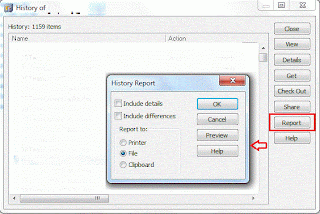
4- Generated report would be in text format and obviously NOT so simple to export to SQL Server, but not that tricky. You can copy paste whole text to Excel to format it manually and it would take more less time.

Tuesday, January 31, 2012

SQL Server: Idera SQL Doctor

If you don't know much about SQL Server internals and its performance tuning techniques, but still need your SQL Server performance, right upto the mark, then you must try SQL Doctor, a really helpful tool by Idera. 
SQL doctor is a revolutionary technology that analyzes the performance of SQL Server and provides recommendations for improving performance.


Tuesday, October 18, 2011

SQL Server: How to Import Data from Pervasive


To extract data from pervasive data files Pervasive database Engine is required. Latest Trial version 11 can be downloaded from http://www.pervasivedb.com/psqlv11/pages/default.aspx
Once you have installed pervasive Engine, follow following steps to view and import it into SQL Server.
1. Open Control Center through programs>Pervasive> PSQL v11> control Center and documentation.

2.       Make sure services pervasive PSQL Relational Engine and pervasive PSQL Transaction Engine are running (Expand services in Left panel)
3.       To open a database Expand Engines>[ server name] > Databases
4.       Right Click on Databases and select New>Database
5.       In Database Name Box give a name to your database.
6.       In Location Box locate the database files path.  (.mkd, .ddf, .dat)
7.       You can uncheck “relational integrity enforced”.
8.       Click Finish to complete the process.


 9.    Expand Database and you can see the added database.
10.   Double click on a table to see records
 

Moving data into SQL Server:
1.       Right click on target database and select Tasks> import data to open import and export wizard.
2.       Hit next on the welcome screen.

4.       To choose a data source click on the drop down list and select Pervasive Provider, Release 3.2
5.       Under Standard connection: specify pervasive Database Name, Host and server DSN as shown in figure below.  DSN DEMODATA is automatically created by Pervasive Engine.
6.       Click next.
7.       Chose SQL server native Client as Destination. Hit Next.
8.        Click next
9.     Provide Query to extract data from a given table. Click parse to verify. Click next
10.   Change Destination table name and click on Edit Mappings button.  You can also preview source data.
11.   In column mappings you can specify Field names, data type and size for destination table.
12.   Click "OK" button to close Column mappings and hit finish to execute the import process.
13.   On successful completion refresh database in SQL Server to see imported data.

Wednesday, May 25, 2011

SQL Server: Better Intellisence for TSQL Code in SSMS

For a developer or DBA it’s common to start their day with “SELECT * FROM” and in a daily routine work we type same lines of script many times. If you are a lazy developer or DBA like me then sometime it feels boring to type same code again and again. Intellisence in SQL Server 2008, saved lot of time but still it lacks few features, which other third party tools were offering before SQL Server 2008. 
Through such tools like SQL PROMPT, we have ability to type shortcuts in editor which after pressing Enter or Tab turn into a predefined code block. Like I will just type * and it will convert it to “SELECT * FROM”.
If you don’t like to purchase these tools but still want to make your life easy then you need SSMS Tools by Mladen Prajdić, totally free and you can download from here. Beside other good tools it has an option of SQL Snippets. Although it already have a good list of shortcuts but still you can add of your choice.

It has shortcuts like:
                                    SSC        =       SELECT  COUNT(*) FROM
                                    SSF         =       SELECT * FROM
                                    UPD       =       UPDATE <>
 SET    <>
 FROM   <>


Monday, May 2, 2011

SQL Server: Keeping Log of Each Query Executed Through SSMS

During a normal working day, a DBA or Developer executes countless queries using SQL Server Management Studio. Some of these queries, which are thought important, are saved and roughly 80% of query windows are closed without pressing save button. But after few minutes, hours or even days, most DBAs and Developers like me want their quires back, which they have executed but can’t save.
SQL Server Management Studio has no such feature through which we can get our unsaved queries back. If you need to keep log of each query you have executed in SSMS then you must install free tool “SSMS Tools Pack 1.9” by Mladen Prajdić, which contains “Query Execution History” and much more. 

Friday, March 11, 2011

SQL Server: How to Find Costliest Nodes in Graphical Execution Plan


Graphical Execution Plan is first place, a DBA like to visit, during query optimization. If execution plan contains few nodes then it is easy to find out the culprit node. But what if target query is complex and resultant execution plan contains dozens of nodes. That’s, what happened this morning to one of my colleague, who was trying to optimize a complex query but execution plan was showing near 100 nodes.
Now finding out expensive nodes for such execution plans is also a challenge. This problem of finding costliest nodes, can easily be solved by getting execution plan XML and executing it with a query as explained by Mladen Prajdić 
But, I think most beautiful way to solve this problem is SQL Sentry Free Tool “Plan Explorer”. You can download it free from follow link.
For example consider following query

USE AdventureWorks
GO
SELECT  *
FROM    Sales.vSalesPerson
 
Here is graphical execution plan of above query, produced by SQL Server Management Studio

And following is the execution plan generated by SQL Sentry Plan Explorer. Costliest nodes are already marked as red and orange as per their cost. So in just one look, one can easily find out these costliest nodes.