Showing posts with label SSMS. Show all posts

Monday, October 1, 2012

SQL Server Management Studio: Basic Startup Options


SQL Server Management Studio is a powerful tool to manage SQL Server databases. Let’s discuss its two very common properties which can make our daily life easy.
  • Why every time, a new query window is open with MASTER database.
On open a new query window, It opens it with MASTER database in use, because on creation of a new user, SQL Server sets default database as MASTER. You change it by opening properties window for your user and then change default database value to your desired one.

Now opening a new query window, your own database will be selected by default.
  • On opening SQL Server Management Studio, I need a new query window automatically.

SQL Server Management Studio gives you five options to change its startup behavior. You can select one of these options by moving your mouse to TOOLS….Options in top menu.


Open Object Explorer
Using this option, only Object Explorer will be opened on startup and will ask you to login to an instance
Open new query window
This option will help you to start SSMS with a new query window only.
Open Object Explorer and new query window
This option is the most common one, when you need both Object Explorer and Query Window
Open Object Explorer and Activity Monitor
This option will open Activity Monitor with Object Explorer


Open empty environment
Option, which is never used (at least I never used it). As it will just open SQL Server Management Studio, No query window, No object explore, just main menu with tool bars.

Thursday, September 27, 2012

SQL Server: Template Explorer, A Developer’s Close Friend


How many of us really memorize all create, update or drop/delete scripts. Very honestly, I just remember Create Procedure and Create Function scripts. But, reality is that, we need not to remember all these codes/scripts, especially when Template Explorer is there for our help.
If you can’t see Template Explorer  in your SQL Server Management Studio, then just move your mouse pointer to top menu, view , Template Explorer or if you are short keys fan then just press Ctrl+Alt+T from your keyboard.

See how quickly I can create a new trigger.


Tuesday, June 28, 2011

SQL Server: Where You Can Find Saved Import/Export SSIS Packages

Using SQL Server Import Export Utility, have you ever saved this SSIS package to SQL Server ?


Recently, a friend of mine asked that after saving Import/Export process as SSIS package to SQL Server, Where he can find this saved package to re-execute it.

Once you have saved your SSIS package,open SQL Server Management studio and then on object explorer panel click on connect and select Integration Services. Use valid user name and password to connect.


Once connect, expend Stored Packages node and then expend MSDB node. Here you can find your saved package. Right click on it and select “Run Package” to re-execute your saved import/export steps.

Sunday, June 19, 2011

SQL Serve Videos: Installing SQL Server and Creating Your First Database

If it’s your first day with SQL Server and you need someone who can help you in installation and creation of your first database in SQL Server 2008, then following videos at youtube are uploaded for you.
Length. 3:03
Length. 6:20
Installation of SQL Server 2005 is bit different as compared to new versions. If you are interested in old version, like SQL Server 2005 then, click on following link to get proper help.
Length 9:55
As 90% functions of SQL Server Management Studio are same in 2005 and later versions, following video (which is based on SQL Server 2005) will be helpful for users who are facing SQL Server Management Studio very first time. 
Length 10:47
Once you have installed SQL Server and successfully connected to your first database then, next thing you must learn is T-SQL Queries
Length 8:57

Wednesday, May 25, 2011

SQL Server: Better Intellisence for TSQL Code in SSMS

For a developer or DBA it’s common to start their day with “SELECT * FROM” and in a daily routine work we type same lines of script many times. If you are a lazy developer or DBA like me then sometime it feels boring to type same code again and again. Intellisence in SQL Server 2008, saved lot of time but still it lacks few features, which other third party tools were offering before SQL Server 2008. 
Through such tools like SQL PROMPT, we have ability to type shortcuts in editor which after pressing Enter or Tab turn into a predefined code block. Like I will just type * and it will convert it to “SELECT * FROM”.
If you don’t like to purchase these tools but still want to make your life easy then you need SSMS Tools by Mladen Prajdić, totally free and you can download from here. Beside other good tools it has an option of SQL Snippets. Although it already have a good list of shortcuts but still you can add of your choice.

It has shortcuts like:
                                    SSC        =       SELECT  COUNT(*) FROM
                                    SSF         =       SELECT * FROM
                                    UPD       =       UPDATE <>
 SET    <>
 FROM   <>


Wednesday, May 18, 2011

SQL Server: Query Template, a Time Saving Feature


While working with SQL Server, its common to have a saved script which you need to execute for different server or databases and usually you open this saved script, make changes according to requirements and execute. SQL Server 2008 has one more time saving facility. You can save your script as template, like following is a simple query script, which I like to execute for different databases and with different order by clause.
USE AdventureWorks
GO
SELECT     s.SalesPersonID, c.Title, c.FirstName, 
c.MiddleName, c.LastName, c.Suffix,e.Title AS JobTitle,s.SalesQuota, s.SalesYTD
FROM        Sales.SalesPerson AS s INNER JOIN
HumanResources.Employee AS e 
ON e.EmployeeID = s.SalesPersonID
LEFT OUTER JOIN
Sales.SalesTerritory AS st 
ON st.TerritoryID = s.TerritoryID 
INNER JOIN
Person.Contact AS c 
ON c.ContactID = e.ContactID 
ORDER BY c.FirstName

One solution to avoid any labor work to change above script manually according to my requirements, is to create a dynamic query. But, in SQL Server 2008 I would prefer Query Template, by saving above query in following Template.
USE 
GO
SELECT     s.SalesPersonID, c.Title, c.FirstName, 
c.MiddleName, c.LastName,
c.Suffix,e.Title AS JobTitle,s.SalesQuota, s.SalesYTD
FROM        Sales.SalesPerson AS s INNER JOIN
HumanResources.Employee AS e 
ON e.EmployeeID = s.SalesPersonID
LEFT OUTER JOIN
Sales.SalesTerritory AS st 
ON st.TerritoryID = s.TerritoryID 
INNER JOIN
Person.Contact AS c 
ON c.ContactID = e.ContactID 
ORDER BY 
Next time when I need to execute this script, I will just open the template and press Ctlr+Shift+M or click on replace button, and it will ask me  for template parameters value and on pressing OK button it will replace template parameters with my values on whole script.
Defining a template needs three parameters separated with comma and enclosed with < and > signs.
<TemplateParameter, ParameterDataType, DefaultValue>

Replace Button

Monday, May 2, 2011

SQL Server: Keeping Log of Each Query Executed Through SSMS

During a normal working day, a DBA or Developer executes countless queries using SQL Server Management Studio. Some of these queries, which are thought important, are saved and roughly 80% of query windows are closed without pressing save button. But after few minutes, hours or even days, most DBAs and Developers like me want their quires back, which they have executed but can’t save.
SQL Server Management Studio has no such feature through which we can get our unsaved queries back. If you need to keep log of each query you have executed in SSMS then you must install free tool SSMS Tools Pack 1.9” by Mladen Prajdić, which contains “Query Execution History” and much more. 

Monday, April 25, 2011

SQL Server: NULL As Nothing vs NULL As String Value in SSMS

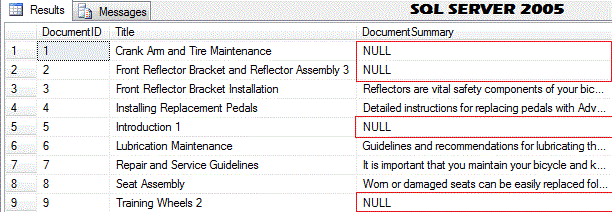
While loading data from Flat Files, I have found that few column values are inserted as ‘NULL’ and client’s application crashed. WHY ?.  Because ‘NULL’ as nothing and NULL as character value are two different things. I found one more blessing of SQL Server 2008. That in SQL Server Management Studio 2008, it shows NULL values in result set with different color. How it helps us in real life, let’s find it with a simple query which we will execute on both SQL Server 2008 and SQL Server 2005.
USE AdventureWorks
GO
SELECT  DocumentID,
Title,
DocumentSummary
FROM    Production.Document
Here is result set from SQL Server 2008
And following result set is from SQL Serve 2005.
In SQL Server 2005, from result set, you can’t say which rows contains NULL (as nothing) values and which contains ‘NULL’ (as character). Lets update one of row in above table on both versions.
USE AdventureWorks
GO
UPDATE Production.Document
SET DocumentSummary = 'NULL'
WHERE DocumentID = 9
Execute select query on both sides and have a look on result-set. In SQL Server 2005, you can’t differentiate which NULL indicates nothing and which NULL are character values, but in SQL Server 2008 you can easily identify such data.


I have learned a lesson from this incident and now,to avoid such discrepancies, I like to execute following script to avoid both, NULL as character value problem and extra spaces problem, once I have loaded data in my target tables.
DECLARE @SqlText VARCHAR(1000)
DECLARE MY_CURSOR Cursor FAST_FORWARD
FOR SELECT  '[' + sc.name + '].[' + tb.name + ']' AS TableName,
cl.name AS ColumnName
FROM    sys.columns cl
INNER JOIN sys.tables tb ON cl.object_id = tb.object_id
INNER JOIN sys.schemas sc ON tb.schema_id = sc.schema_id
WHERE   tb.type = 'U'
AND cl.system_type_id IN ( 167, 175, 231, 239 )
AND cl.is_computed = 0
AND sc.principal_id = 1
ORDER BY TableName
/*
varchar = 167
nvarchar= 231
char = 175
nchar = 239
*/
OPEN My_Cursor
DECLARE @TableName VARCHAR(500),
@ColumnName VARCHAR(500)
Fetch NEXT FROM MY_Cursor INTO @TableName, @ColumnName
WHILE ( @@FETCH_STATUS <> -1 )
BEGIN
SELECT  @SqlText = 'UPDATE ' + @TableName + ' SET [' + @ColumnName
+ '] = CASE LTRIM(RTRIM([' + @ColumnName
+ ']))
WHEN ''NULL'' THEN NULL ELSE LTRIM(RTRIM(['
+ @ColumnName + '])) END'
EXEC ( @SqlText )                                                                      
FETCH NEXT FROM MY_CURSOR INTO @TableName, @ColumnName
END
CLOSE MY_CURSOR
DEALLOCATE MY_CURSOR

Monday, March 21, 2011

SQL Server: Understanding Output of SET STATISTICS TIME ON


In one of my early post Which is More Important for Query Optimization, CPU or Logical Reads? We have discussed about importance of logical page read values, that when we need to compare performance of two different versions of same query. If fewer pages are being accessed by one of our query, then it would be considered efficient as compare to other one.
But how much time a query is taking can be best measured by setting STATISTICS TIME on by using statement SET STATISTICS TIME ON.
 
--DBCC FREEPROCCACHE
SET STATISTICS TIME  ON
SELECT TOP (10) ProductID,[Name],Color,ListPrice,[Size]
FROM Production.Product
SET STATISTICS TIME  OFF
SQL Server parse and compile time:
   CPU time = 0 ms, elapsed time = 6 ms.
(10 row(s) affected)
SQL Server Execution Times:
   CPU time = 0 ms,  elapsed time = 1 ms.
This output can be grouped as
  • Parse Time (in milliseconds) 
  • Compile Time (in milliseconds) 
  • Execution Time (in milliseconds)
Parse time is the time spent during checking SQL statement for syntax errors, breaking the command up into component parts, and producing an internal execution tree
Compile time is time spent during compiling an execution plan in cache memory from the execution tree that has just been produced.
And execution time is total time spent during execution of compiled plan.
All above three outputs are further divided to two subparts each i.e. CPU time and Elapsed time. CPU time is time used by CPU resources to complete a task (parse, compile or execute), while elapsed time is the total time took by a task from start to its end.
For example execution CPU time is just the time for which the CPU was busy executing the task and Elapsed time is the amount of time it took for the query to execute from start to completion. Most of the time elapsed time larger then CPU time because it also includes time spent during I/O operations required by query.
Elapsed time can be different for same query syntax on same server during different execution times because it depends upon other resources availability. Hence CPU time for execution of a query is important during performance comparison process.
Keep in mind that, ZERO parse and compile time is an indication that optimizer has reused the existing plan and hence made no effort and took no time for these processes.
DBCC FREEPROCCACHE is used to clear out the cache BUT DON’T use it on production servers.

Thursday, March 3, 2011

SQL Server: Multiple Objects Script but Save Each to Separate Files


Recently a developer asked for a tool or script which can generate script for given objects (tables, views, stored procedures etc) but results should be saved in separate files.
I think they were not aware that SQL Server 2008 already added this facility in script Wizard. Once you have provided all your required options and reached on last page of script wizard. This page provides options that you can save output to a single file or separate files, one for each object.


Thursday, February 24, 2011

SQL Server: How to Refresh Intellisense Cache

Intellisense in SQL Server 2008 is a time saving feature. But sometime writing queries it start underlining some objects names or some columns names which are already added in database and these are correct but intellisense mark them as a MISTAKE. In long queries it creates confusion. I have seen my fellow DBAs, turning off the feature to avoid confusion and mental stress;).
Also, sometime intellisense is not helping enough for auto-complete feature. 
Simple solution for this problem is to refresh local cache by using  Ctrl + Shift + R. So it should start marking only real mistakes. You can also refresh local cache from Edit--- >IntelliSense --- > Refresh Local Cache


Friday, January 7, 2011

Sql Server: Quickest Way to Create Tables Relationship

Creating relationship between tables is not a big task, but I have noticed that many of us (especially I) want to create these relation in minimum time. We can create relations between tables through T-Sql (most time consuming method) or we can complete this task through graphical design view of table in Sql Server Management Studio. But I like to create these relations with following method.
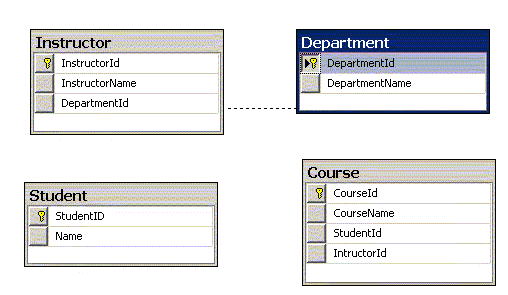
1.  Create table through design view in SSMS (Quick way to create table). In our example we have created following four tables.

2.       Create a database diagram by following method
a.  Right click on “Database Diagram” and click “New Database Diagram”
b.      Add your desired tables. In our case we will add four tables
3.  Click on primary key column and drag it to related table. Verify columns to join in pop-up window and press OK for both pop-up windows. Repeat the process with all table and you are done.

4.       Cltr + S  or click on save button to save diagram and table relations.